How to Turn Spanish Audio and Video into English Subtitles
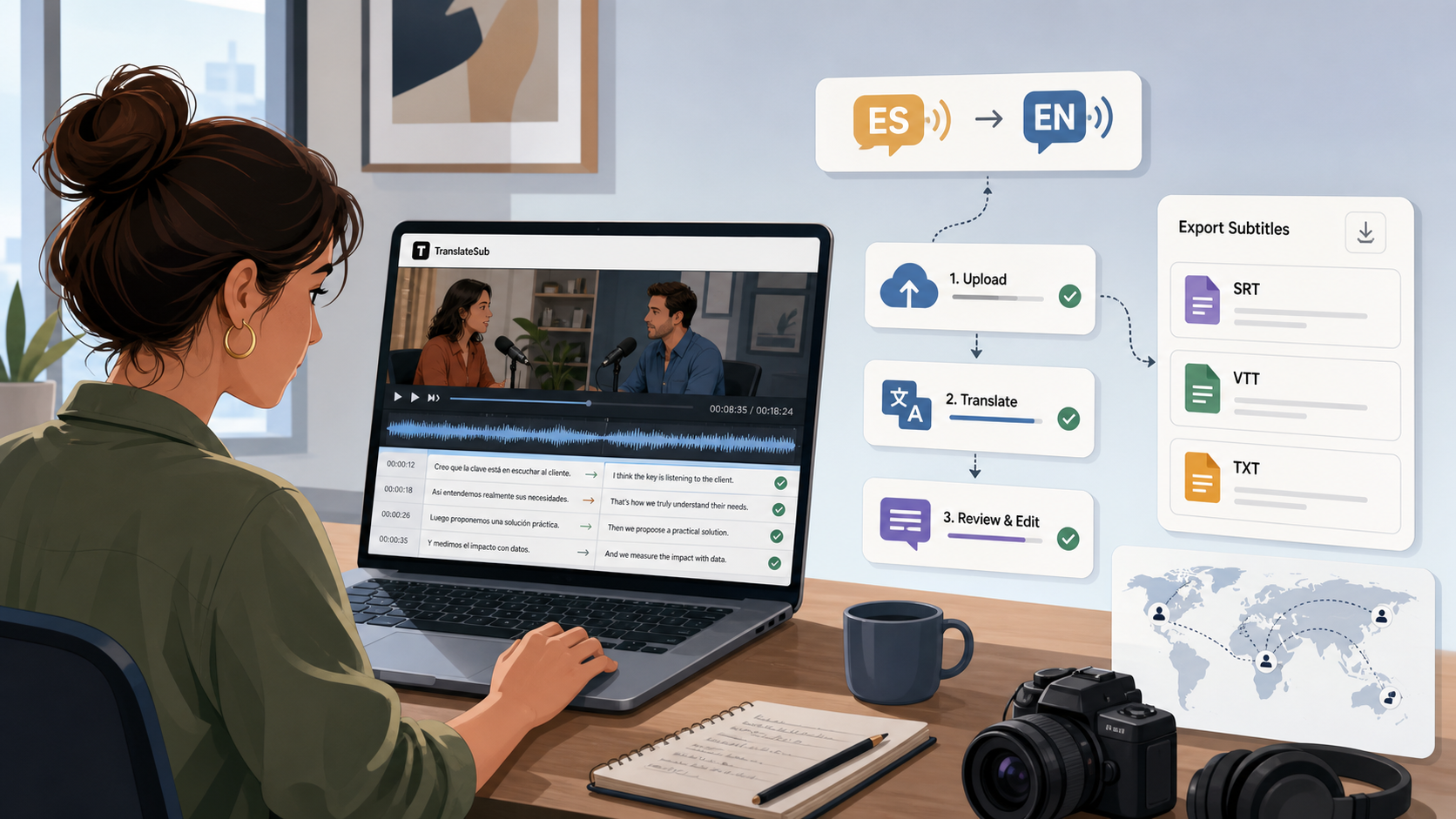
A freelance video editor gets a short message from a client: "Can you prepare English subtitles for this Spanish interview before tomorrow?" The footage is useful, the audio is clear enough, and the client wants to use the same clip on YouTube, a webinar replay, and a product marketing page. Re-recording the video is not an option. The practical job is simpler and more urgent: turn the Spanish source footage into clean English subtitles.
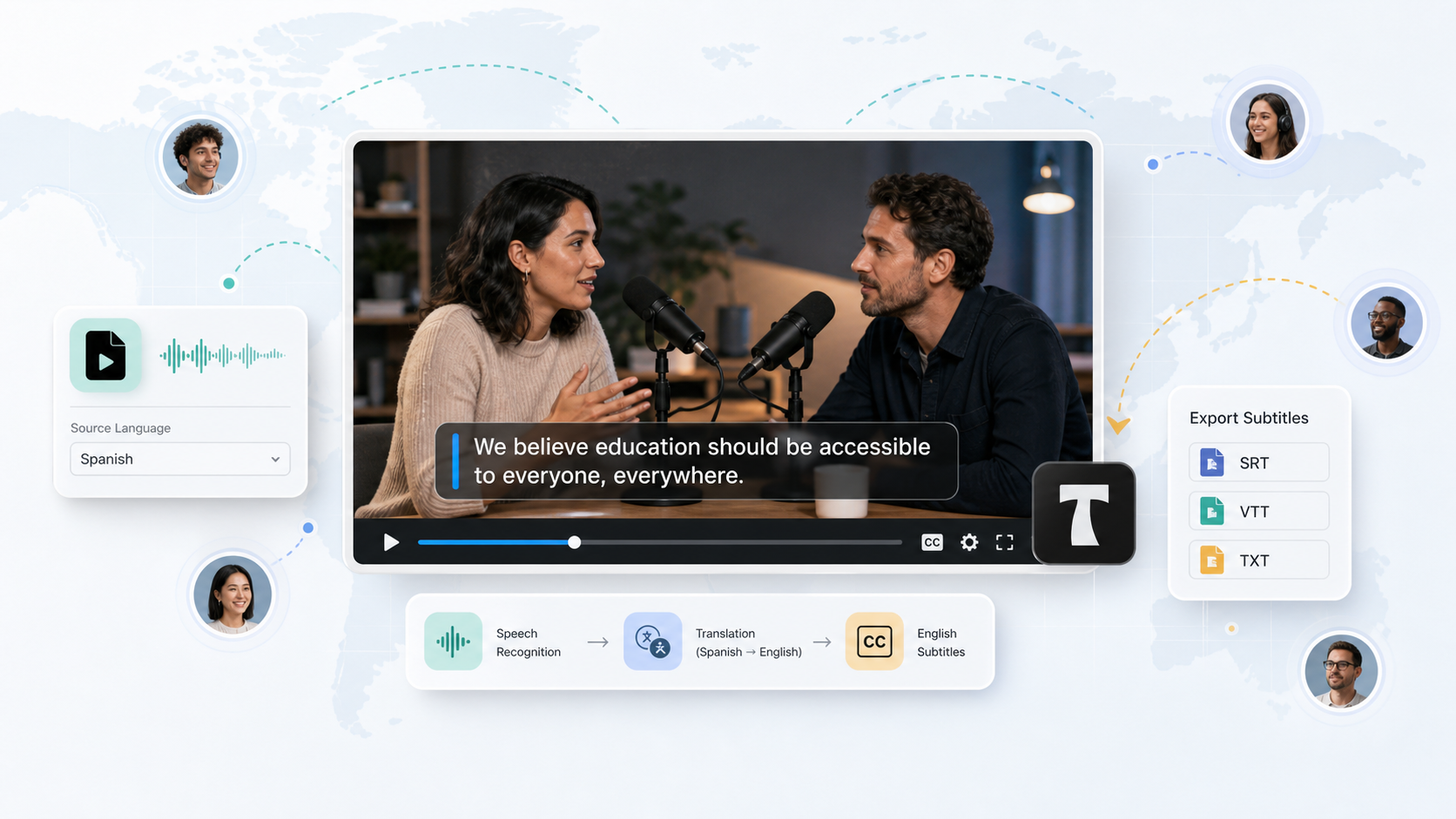
That is the process this guide covers. With TranslateSub, you can create English subtitles from Spanish audio or video by uploading your file, choosing English as the target language, reviewing the subtitle draft, and exporting SRT, VTT, or TXT files.
This is not a broad article about transcription in general. It is a practical tutorial for editors, marketing teams, content creators, course teams, and international teams that already have Spanish footage and need an English subtitle file they can review, publish, or hand off.
Before you start: prepare the right source file
Before opening any tool, decide which file should become the subtitle source. If there are several versions of the same interview, product demo, webinar, or class recording, use the one with the clearest audio. For subtitle translation, audio quality matters more than color grading or final visual polish.
You can work from common audio or video formats such as MP4, MOV, MP3, WAV, or M4A. If your video file is large and you only need subtitles, exporting the audio track can sometimes make the workflow easier, as long as the duration matches the final video.
It also helps to prepare a short terminology list. Add product names, speaker names, brand terms, locations, acronyms, and numbers that must be checked later. AI can reduce a lot of manual work, but proper nouns and technical vocabulary still deserve human attention.
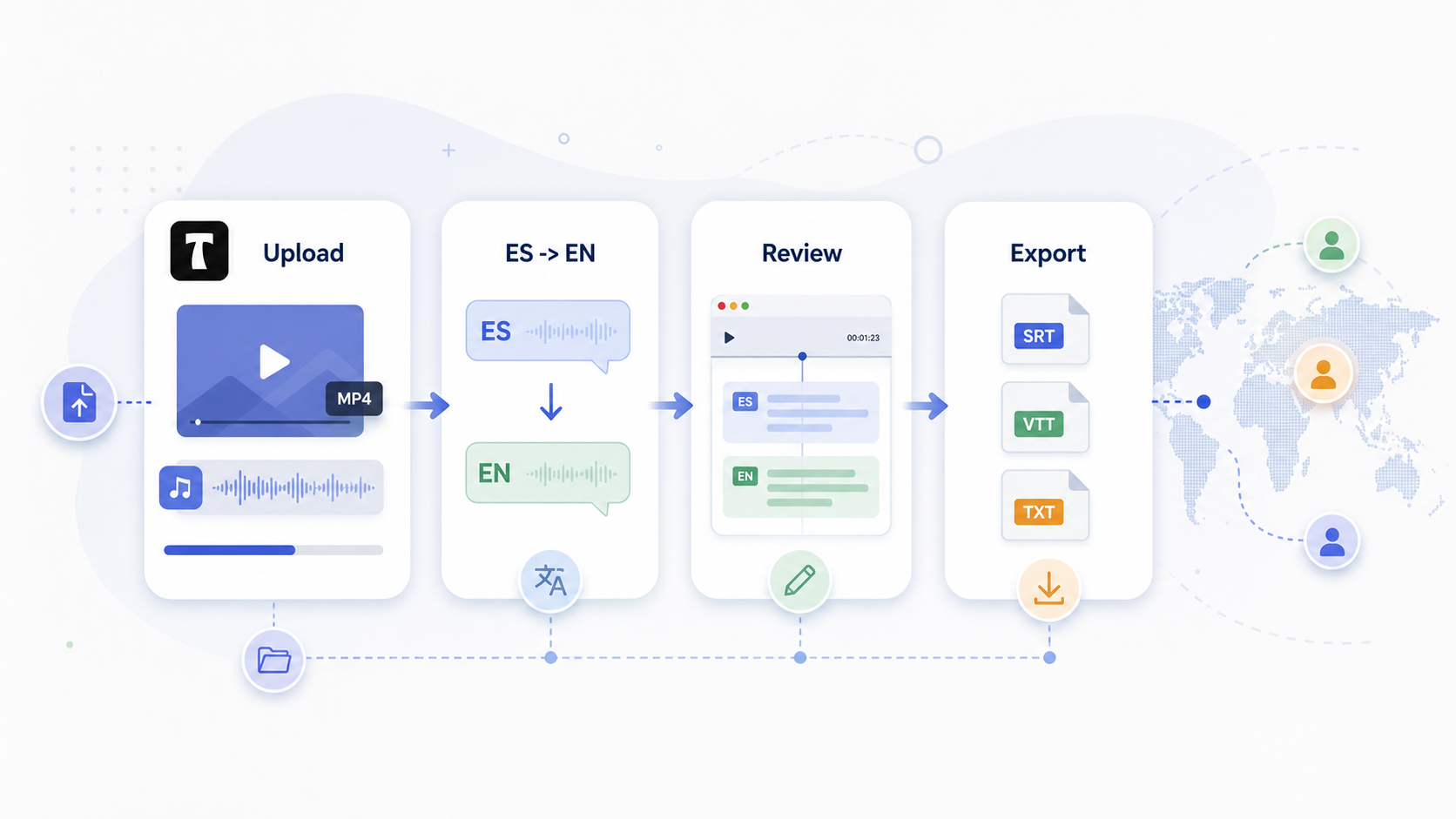
Step 1: upload your Spanish audio or video file
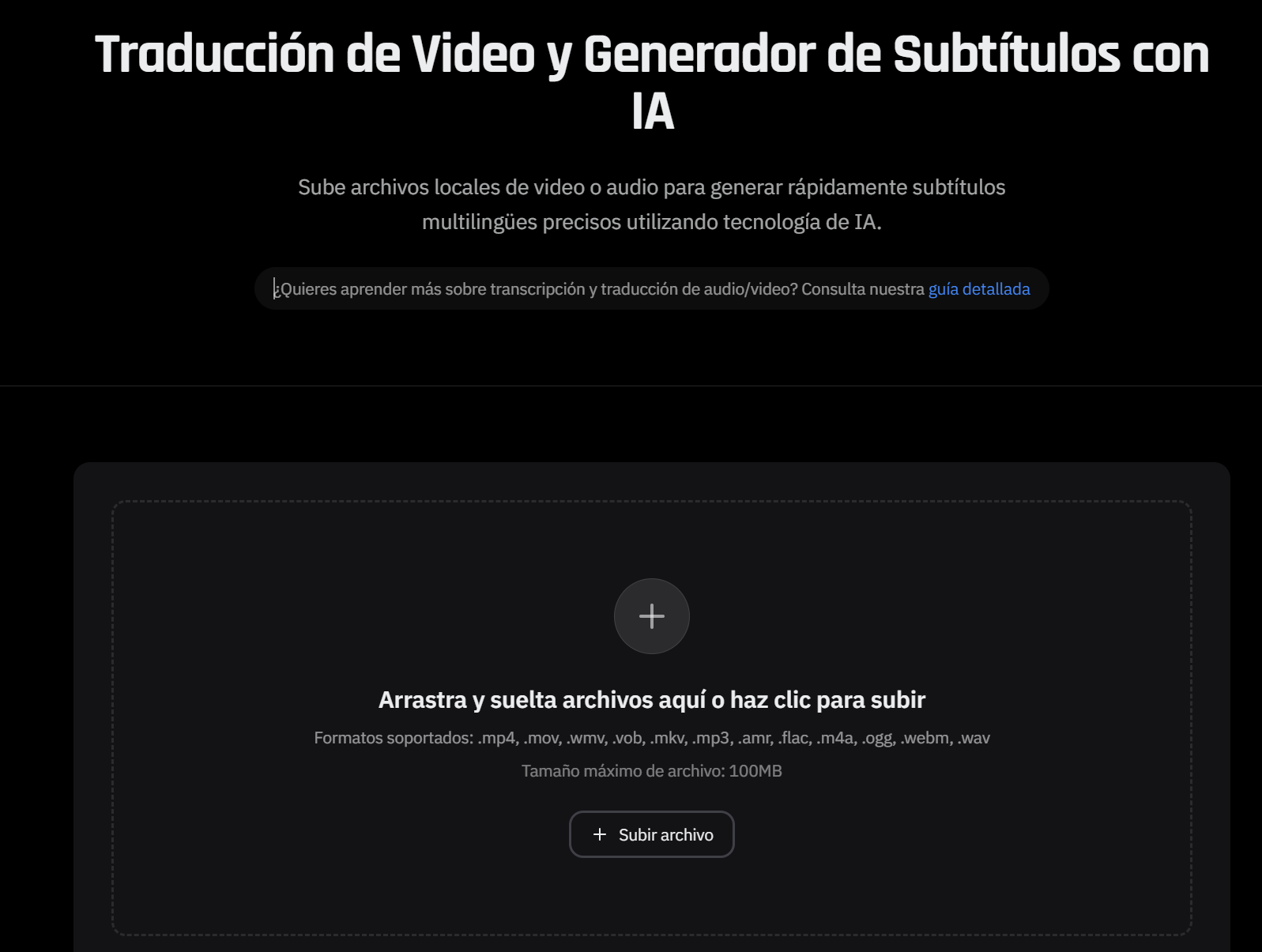
Open TranslateSub, choose Spanish as the source and English as the target, and upload the Spanish source file. This keeps the task focused on one clear output: Spanish source content, English subtitles.
For a client interview, the editor might upload the full MP4. For a course lesson, the course team might upload an audio export. For a webinar, the marketing team might use the recording file that will later be published on the website or in a replay library.
The important part is to avoid temporary cuts with missing intros, compressed audio, or background music that is louder than the speakers. If you need to turn Spanish video into English subtitles, start from the cleanest voice track you have.
Step 2: choose Spanish as the source and English as the target
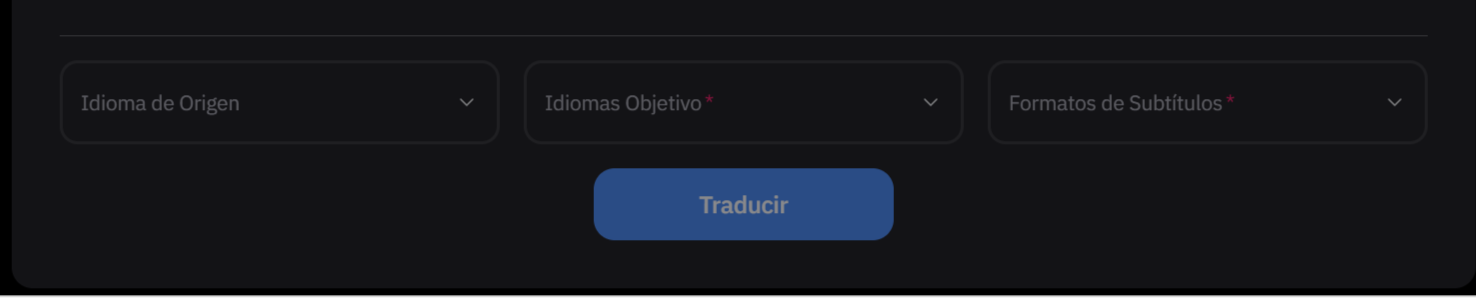
After upload, confirm the language settings. Spanish should be the source language, and English should be the target language.
This choice defines the output. A plain transcript gives you text from the original Spanish audio. A subtitle translation task gives you English lines that can be placed back over the video with timing.
For interviews, courses, webinars, and product demos, the viewer matters more than literal wording. English-speaking viewers do not need every filler word from the Spanish speaker. They need to understand who is speaking, what is being explained, and when each idea appears in the video.
That is why review matters later. Phrases that sound natural in Spanish may need a more natural English rendering, especially in customer quotes, founder interviews, product explanations, and learning material.
Step 3: choose SRT, VTT, or TXT
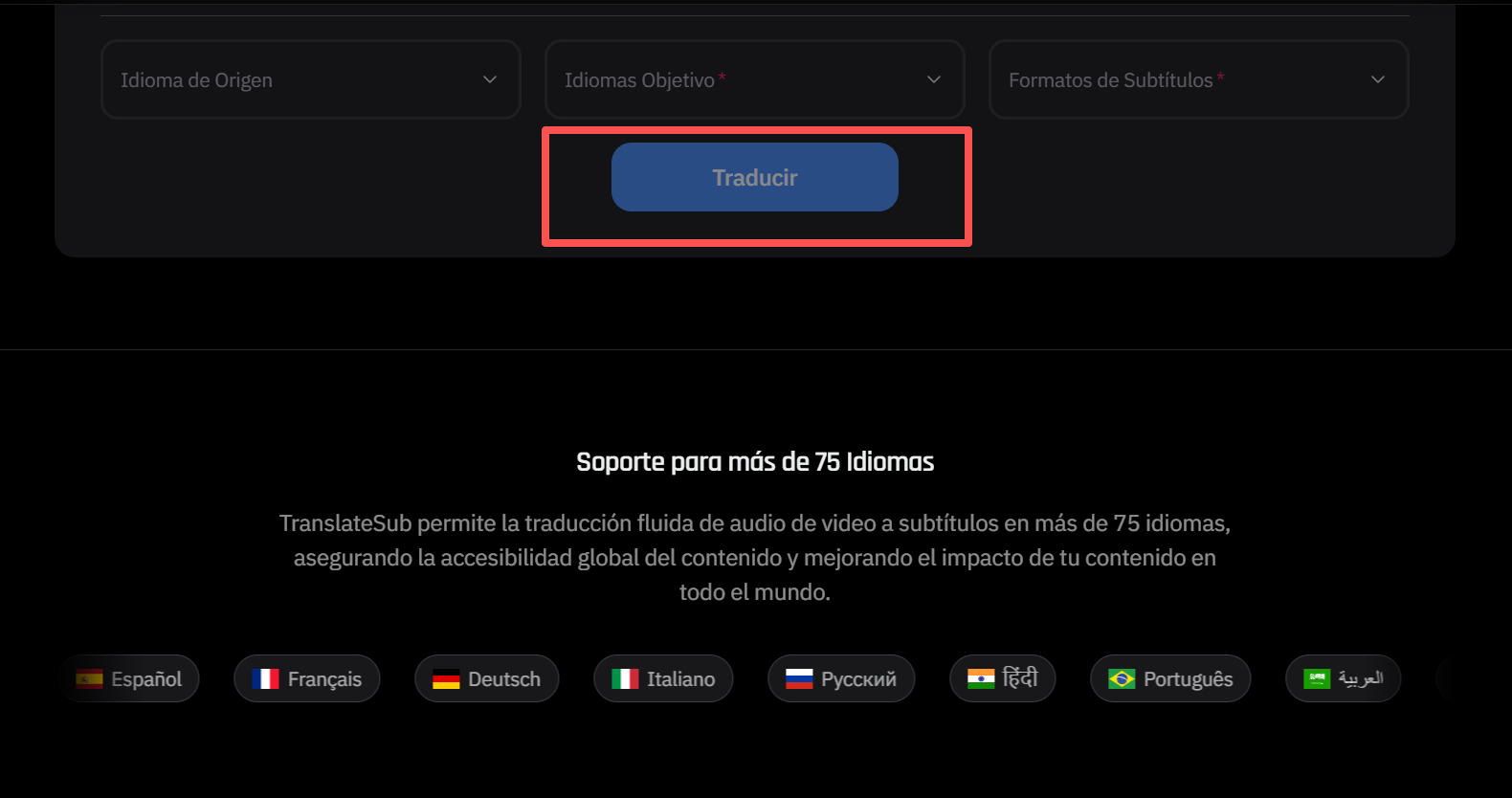
Choose the export format according to where the subtitles will be used:
Use SRT for YouTube, many course platforms, editing tools, and common subtitle workflows.
Use VTT for web players and pages that support WebVTT.
Use TXT when you need a readable text version for review, notes, summaries, or documentation.
If the final destination is YouTube, SRT is usually the simplest starting point. If the subtitles will live on a website or in a custom player, VTT may be more useful. When in doubt, export both SRT and TXT: one for the video workflow, one for review.
For teams preparing English subtitles for Spanish video, this format decision is small but important. It keeps the subtitle file useful after translation instead of creating another cleanup task.
Step 4: generate the translation
Once the file, source language, target language, and output format are ready, start the task. TranslateSub processes the audio, creates a subtitle draft, and prepares the English output for review.

The processing time depends on file length, audio clarity, file size, and the number of speakers. Short clips with one clear speaker are easier than long interviews with interruptions or background noise.
While the draft is being generated, use the time to prepare the review pass. A simple checklist is enough: speaker names, product names, numbers, customer quotes, technical terms, and any sentence that will appear in a public marketing asset.
Step 5: review the English subtitles
When the subtitle draft is ready, open it before exporting. This is where an AI-assisted draft becomes something your team can actually publish.
Start with the first minute. If names, punctuation, line breaks, or speaker context are already off, fix those patterns early. Then check moments where the audio changes: interruptions, laughter, fast exchanges, numbers, product terms, and sections with multiple speakers.
Also watch line length. English may be shorter than Spanish in some places and longer in others. A subtitle that reads well in a text editor can still feel too long on screen. Split or simplify lines when needed, without changing the meaning.
For client work, course material, or public marketing pages, do not skip this step. AI speeds up the process, but the final subtitle file still represents your team.
Step 6: export and test the subtitle file
After review, export the subtitle file in the format you need. Upload the SRT to YouTube, test the VTT in your web player, or share the TXT with a writer, editor, or client reviewer.
Before sending the file, test it with the video. Check three things:
the subtitles appear at the right time;
each line is comfortable to read;
the English sounds natural for the intended audience.
This test often catches small but important issues: a product name translated as a normal word, a number that needs checking, or a line that stays on screen for too little time.
Common mistakes when translating Spanish video into English subtitles
The first mistake is using a poor audio version when a clearer one exists. Background music, echo, compressed speech, or overlapping voices can make the subtitle draft harder to review.
The second mistake is confusing transcription with subtitling. A transcript can be a block of text. A subtitle file needs timing, readable line breaks, and a rhythm that works on screen.
The third mistake is ignoring terminology. Brand names, product features, speaker names, acronyms, locations, and numbers should be checked before publishing.
The fourth mistake is exporting without watching the subtitles over the video. A file can look correct in SRT form and still feel awkward in the player.
The fifth mistake is trying to cover too many language goals in one project. If the task is Spanish to English, keep the setup, review, and CTA focused on that pair.
How long does it take to translate a Spanish video into English?
The total time depends on more than the length of the video. A short clip with clean audio, one speaker, and simple vocabulary will usually move faster than a long interview with interruptions, background noise, or several people talking over each other.
Think about the process in two phases. The first phase is automatic draft generation: transcription, translation, and subtitle timing. That is usually much faster than creating subtitles manually from a blank page. The second phase is human review, and that depends on the content. Names, brands, numbers, technical terms, legal claims, and public-facing messaging all add review time.
For marketing videos, interviews, webinars, course clips, and product demos, the point of TranslateSub is to reduce the first layer of manual work so your team can spend more time on clarity, tone, terminology, and sync.
When this workflow is a good fit
This workflow is a good fit when you have Spanish interviews, YouTube videos, course lessons, podcasts, webinars, customer stories, product demos, or social clips that need English subtitles.
It is especially useful for teams that collaborate across languages. A video editor who does not speak Spanish can review the cut with English subtitles. A marketing manager can approve a customer story. A course team can prepare a lesson for international learners before investing in a full localized version.
Many international marketing teams use English subtitles as a first publishing step before investing in dubbing or larger localization projects.
It is not the right final step for certified, legal, medical, or highly sensitive content without expert review. In those cases, AI can prepare a draft, but a qualified reviewer should check the final subtitle file.
FAQ
Can I turn a Spanish video directly into English subtitles?
Yes. You can upload Spanish audio or video to TranslateSub, choose English as the target language, review the subtitle draft, and export the result as SRT, VTT, or TXT.
Should I use SRT or VTT?
Use SRT for YouTube, many course platforms, and common video editing workflows. Use VTT for web players and pages that use WebVTT. If you are not sure, export both and test the file in the place where the video will be published.
How accurate is AI subtitle translation from Spanish to English?
Accuracy depends on audio quality, speaker clarity, vocabulary, and how technical the content is. Clean audio gives the AI a better starting point, but you should still review names, brands, numbers, technical terms, and lines that may sound too literal in English.
Should I use AI or a professional translator?
For marketing videos, interviews, podcasts, webinars, and internal demos, AI plus human review is often a practical workflow. For legal, medical, certified, or sensitive content, the final subtitles should be checked by a qualified professional before publication.
Can I edit subtitles before export?
Yes. You should review and edit the subtitles before downloading the final file. Check proper nouns, brand language, technical terms, numbers, line length, and any sentence that will be used in a public-facing asset.
Do I still need to review AI subtitles?
Yes. Review does not need to be slow, but it should not be skipped. The goal is to make sure the English subtitles are clear, timed correctly, and appropriate for the audience.
Conclusion
Turning Spanish audio or video into English subtitles does not have to become a full re-recording project. If you start with a clean source file, choose Spanish as the source and English as the target, export the right format, and review the sensitive details, you can create a subtitle file that is ready for YouTube, courses, webinars, marketing pages, or client review.
If your goal is to share Spanish content with an international audience, use TranslateSub to translate Spanish audio or video into English subtitles, review the first version, and export SRT, VTT, or TXT for your publishing channel.
Related reading
If you are building a broader subtitle workflow, these guides may help with adjacent use cases:
How to Use TranslateSub YouTube Subtitle Generator & Transcription: useful when your Spanish source video comes from YouTube or needs a subtitle file for online publishing.
AI real-time translation for Coursera and Udemy: helpful for course teams working with lessons, replay videos, and international learners.
How to Rapidly Distribute Global Content with Multilingual Subtitles: useful if your goal is to reuse videos across YouTube, TikTok, product pages, and other international channels.